
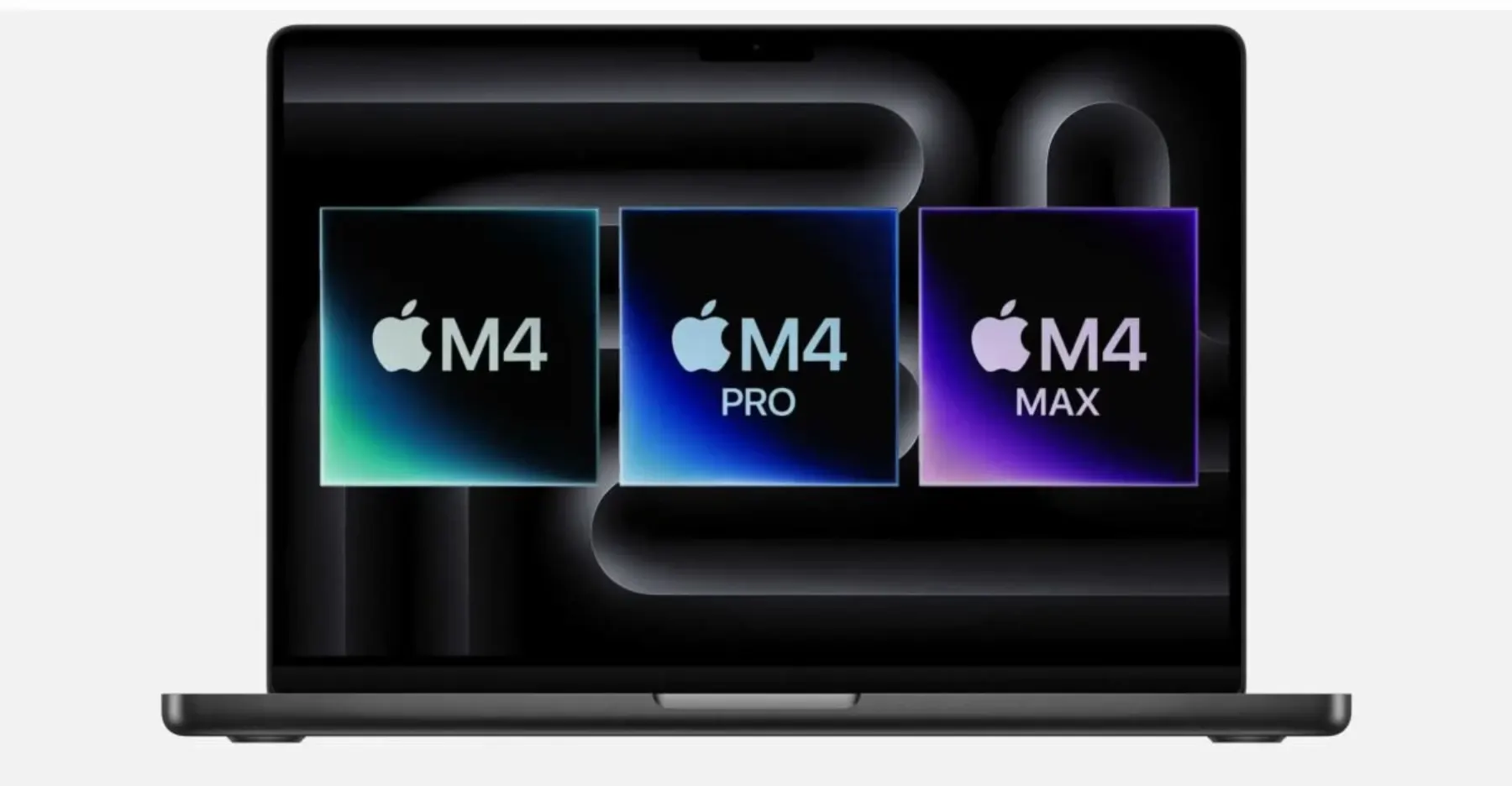
My Sony A1 sat on firmware 1.32 for a long time. Not because I didn’t want the updates, but because Sony makes you run two of them (1.35 and then 2.01) from a computer program that officially supports macOS 12 through 14. My only computer is a 16-inch MacBook Pro with the M4 Max on macOS 27. Sony’s own page for the 2.01 updater doesn’t list anything newer than macOS 14, and when I went looking for someone who had done it on a current Mac, I found nothing. Not one post, not one forum thread, nothing from 2025 or 2026.
So I did it, carefully, and wrote down everything. On October 24, 2026 my A1 went from 1.32 to 1.35 to 2.01 to 4.00 using only that MacBook Pro. The next day I updated my Tamron 35-150mm f/2-2.8 from firmware 2 to 6 on the same machine. If you’re stuck where I was, this is the write-up I wish I’d had.
The usual caution first. Sony doesn’t support this on macOS 27. A firmware update that gets interrupted can leave a camera that won’t turn on. Everything below worked for me, once, on one machine. Read the whole thing before you start, and if any step doesn’t go the way I describe, stop and figure out why before you keep going.
Why the A1 is awkward to update
If your A1 is on 1.32 or earlier, Sony requires a specific order: 1.35, then 2.01, and only then the current version (4.00 as I write this). Skip a step and the camera throws an error. The 1.35 and 2.01 updates come as Mac or Windows programs that talk to the camera over USB. Starting with 2.02, Sony switched to a memory card method where the camera updates itself from a file on the card. So the computer is only involved for those first two hops. Once you’re on 2.01, you never need it again.
The Mac version has two parts that don’t love modern Macs:
- A Sony Camera Driver, which is an old-style kernel extension. On Apple silicon those only load if you lower the Mac’s startup security.
- Updater apps built for Intel, which need Rosetta to run on an M-series chip.
Sony’s 2.01 page lists macOS 12 through 14. But Sony’s driver page quietly lists macOS all the way through 26 and says Apple silicon is supported. That gap is what made me think it might work on 27.
What you need
- Your A1 with the grip off, both memory cards out, and a battery at three bars or more (Sony’s rule is 51% minimum; mine was at 96%).
- The USB-C cable that came with the camera. Plug it straight into the Mac, no hub or dock.
- About two hours, including a few restarts.
- Photos of your menu settings. Updating past 1.32 resets everything to factory defaults. I’ll say it again at the end because it matters.
- Both Sony downloads: the Camera Driver (a tiny 158 KB file) and the 1.35/2.01 updater (about 1.5 GB). The updater disk image contains two apps, one for each step.
Step 1: Install Rosetta
The Sony updaters are Intel-only apps. Open Terminal and run softwareupdate --install-rosetta --agree-to-license. It takes a minute. If you’ve ever run an Intel app on your Mac, you already have this.
Step 2: Set Reduced Security in Recovery
This is the part that scares people, and it’s the part that made me put the update off. It’s fine. You’re telling the Mac it’s allowed to load a driver from a company Apple has vetted, and you can set it back to Full Security when you’re done. I did.
- Shut the Mac all the way down.
- Hold the power button until you see “Loading startup options,” then click Options and Continue.
- From the menu bar, open Utilities, then Startup Security Utility.
- Select your startup disk and click Security Policy.
- Pick Reduced Security and check the box that allows user management of kernel extensions from identified developers. That checkbox is the whole point.
- Click OK and restart.
Step 3: Install the Sony Camera Driver
Open the Camera Driver disk image and run the installer package. It will finish and say it was successful, but the driver isn’t loaded yet. Go to System Settings, Privacy & Security, scroll to the Security section, and you’ll see a note that software from Sony Imaging Products & Solutions was blocked. Click Allow, enter your password, and restart when it asks.
After that restart I confirmed the driver had loaded before touching the camera. If you’re comfortable in Terminal, kmutil showloaded | grep -i sony should show a line with com.sony.driver. If it’s empty, the Recovery step didn’t take, and you shouldn’t go further.
Step 4: Get the camera ready
Sony wants the camera in Mass Storage USB mode. On 1.32 that setting lives at Setup, USB, USB Connection. Mine was greyed out with a message that it wasn’t available because PC Remote was on. The PC Remote switch on this firmware isn’t under USB, it’s in the Network menu, under PC Remote Function. Turn it off there, unplug any cable, and the USB Connection setting comes back. Set it to Mass Storage.
Then: grip off, cards out, good battery, camera on, and plug it into the Mac.
Step 5: Run the 1.35 updater
Open the updater disk image and launch 01_Update_ILCE1V135.app. Rosetta runs it without complaint. A note about Imaging Edge Mobile will come up; click OK. (Imaging Edge Mobile stops working after this update. You’ll switch to Creators’ App, which the camera walks you through at the end.)
The updater should show your current version as 1.32 and the version after update as 1.35. If it shows anything else, stop. If it does, click Next, then Run.
The camera restarts into update mode, the little red access light comes on, and the updater says “Updating. Do not pull the USB cable out or turn off.” Mine took a few minutes. Don’t touch anything. When it says the process has been completed, click Finish. The camera restarts on its own.
One gotcha from my own run: I clicked Finish on an earlier screen by accident, which just closes the updater. No harm done, but it means relaunching the app. Finish never starts a flash. Only Run does.
Step 6: Run the 2.01 updater
Leave the camera plugged in and on. Launch 02_Update_ILCE1V201.app from the same disk image. It should read 1.35 as the current version and 2.01 as the target. Same routine: Next, Run, hands off.
Sony says this step takes about 30 minutes. Mine was quicker, but plan for the full half hour and don’t let the Mac sleep. I ran caffeinate -dimsu -t 5400 in Terminal first so it couldn’t. When it finishes, click Finish, let the camera restart, and set the date and time when it asks. Then check Setup, Setup Option, Version. It should say 2.01.
That’s the hard part done. You’re past the computer forever.
Step 7: Set Full Security back
Before doing anything else, I went back into Recovery, opened Startup Security Utility again, and set it back to Full Security. The Sony driver stops loading under Full Security, which is fine because you don’t need it anymore. I deleted it afterward too.
Step 8: 2.01 to 4.00 from a memory card
Download the 4.00 file from Sony. It’s a single file called BODYDATA.DAT, about 800 MB. Format a card in the camera, then get the file onto it. If you don’t have a card reader, the camera itself works: with the card in slot 1 and USB still set to Mass Storage, plugging the camera into the Mac mounts the card as a drive. Copy the file to the root of the card, not inside any folder, eject it properly, and unplug.
On the camera: card in slot 1, battery over 51%, then Setup, Setup Option, Version, Body, Software Update, Execute. The screen goes black and the access lamp blinks in a pattern that changes as it goes. About six minutes. Then it restarts and says the body update is complete. Mine read 4.00 right after.
Bonus: the Tamron 35-150 on the same Mac
My Tamron 35-150mm f/2-2.8 Di III VXD was on firmware 2. The current version is 6, with real improvements to autofocus tracking and focus while zooming. Tamron updates don’t go through the camera at all. The lens has its own USB-C port on the barrel, and you use the Tamron Lens Utility app on a computer. The phone app can’t do firmware, only the desktop one.
Three things I learned:
- The port is picky about cables. The Sony cable and two others didn’t register at all. A fourth, slimmer USB-C cable finally seated. If the Mac shows nothing when you plug the lens in, it’s the cable, not the software.
- You need Tamron’s bundled driver, and it’s the easy kind. The lens shows up as a Silicon Labs serial chip with Tamron’s own ID, so the Mac’s built-in driver ignores it. Tamron’s installer includes a modern DriverKit version that works under Full Security. When macOS asks, click “Open System Settings,” not OK, then switch the CP210x driver on under Login Items & Extensions. Tamron’s own instructions say the same and warn that clicking OK makes the install hang.
- “Lens not connected” on the app’s home screen is normal. The app only talks to the lens once you click Start under Lens Firmware Update. Then it showed version 2, offered version 6, and the flash took about fifteen seconds.
Afterward
A few things that caught me:
- Everything resets. Custom buttons, Fn menu, picture profiles, memory recalls. Photograph your menus before you start.
- Imaging Edge Mobile is gone. Creators’ App replaces it, and the camera prompts you to pair.
- The old NFC tap-to-connect is removed in 2.x.
- Your USB Connection is still on Mass Storage. If you tether, flip PC Remote back on when you need it.
I’m glad I didn’t haul the camera to a shop for this. The first steps are nerve-wracking, especially sitting there watching the red light, but nothing about it was actually hard. It was just undocumented. If this gets one other A1 shooter on an Apple silicon Mac unstuck, writing it down was worth it.
If you’ve got a question about a step, or you tried it on a different macOS version and it went differently, I’d like to hear about it. Use the contact page and tell me what you saw.
Author
Tex Kelly
- gear
- workflow
- sony
- tutorial